
Compute is the biggest cost line on a platform like this. Let everyone draw whenever they want and the bill runs away. Lock it down too hard and creation stalls.
Bollo handles it with three layers: team allowance + member allocation + daily cap.
1. The Default Allowance Rule
Remember this one first: by default a team can spend up to the equivalent of 2,000 RMB in credits per day. Admins can change the cap.
The point of the rule is a backstop — it stops someone from accidentally batch-running a pile of high-res long videos one day and eating the whole monthly budget.
If your team is large or ships fast, the default 2,000 RMB/day may not be enough. Admins should raise it based on actual output.
2. How to Allocate Compute
Path: Avatar → Team Management → Team Members
- Open the team management list and click “+ Invite Link”
- Choose the team
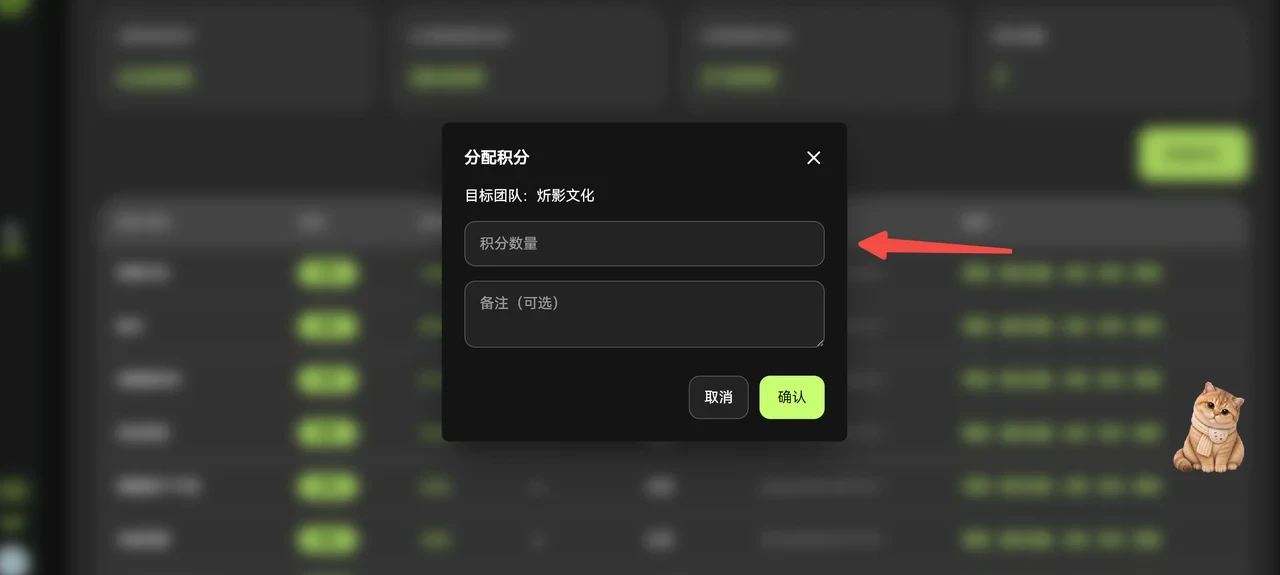
- Click “Allocate Credits”
- Enter the credit amount
- Confirm the allocation
The official reference rate: 30,000 credits ≈ 1,100 RMB of compute.
A rough sense of the ratio is enough. In practice, the credit price shown on the page is what counts.
3. Allocation Strategies: Three Common Approaches
3.1 Even Split
Equal amount per person. Works for small teams that just started and haven’t figured out individual rhythms yet.
The downside: VFX people run out, dialogue people end up with a pile left over.
3.2 By Role
- Director / producer: small amount, mostly for review and pickups
- Storyboard artist: medium, mostly for trial generations
- Asset generation: medium-high, front-loaded
- Post / compositing: small, mostly spent on regeneration
Role-based allocation tracks the real consumption curve better, but it requires managers who know the pipeline well.
3.3 By Stage
Asset generation in pre-production takes a share, storyboard generation in mid-production takes the largest share, and rework in post takes the rest.
The upside is that it aligns with the project schedule. The downside is frequent rebalancing.
Recommendation: start small teams on an even split, then switch to role-based after one or two projects.
4. Per-Episode Caps (Planned)
The platform is planning a feature: set a credit cap per episode, which helps control overall project cost.
Once it ships, the most practical use is giving a “pilot episode” a very low allowance so nobody can draw endlessly on one episode.
Until then, the workaround: write the budget into the project description and watch it manually.
5. Opening and Closing Accounts
The same place: “Team Management”.
5.1 Opening an Account
Click “Join via invite link” in the lower right, then copy the share link and send it.
Once they join through the link they become a team member and can access team assets and work on projects.
Three things to keep in mind:
- Decide what permissions they get before you send the link
- Give new members access to one project first, add more once things run smoothly
- Links expire; regenerate when needed
5.2 Closing an Account
Click the delete button.
Three things you must do first:
- Confirm their work is handed over: project assets, storyboard progress, open tasks
- Convert personal assets to team assets: otherwise the assets leave with the person
- Check running generation jobs: tasks may be interrupted when the account is closed
6. Five Cost-Control Moves
If this month went over, check in this order:
- Look at the daily trend for peaks: pin down which days went over
- Look at compute spend in the project overview: which project ate the most
- Look at parameter settings: were resolution, duration or speed tier raised?
- Look at attempts: are you failing on the same problem repeatedly?
- Look at member allocation: is someone still trying to generate after running out?
Most overruns aren’t a unit-price problem. They’re duplicated work.
7. A Cost Planning Example
Say you’re making 20 episodes at 2 minutes each:
- Reference the case data — compute varies enormously by style (from a few hundred to tens of thousands of credits per minute)
- Estimate at a mid-range cost: work out the total pool first, then back into a per-episode allowance
- Hold back 20% for rework
For how to estimate the numbers, see the actual consumption data for four shows in the case breakdown.
8. Next Steps
To see how that consumption is tracked and reviewed, see Team Dashboard: Credit Spend, Generation Time, and Generation Attempts.