
Opening Bollo for the first time, the step you get stuck on isn’t the buttons. It’s not knowing which mode to enter.
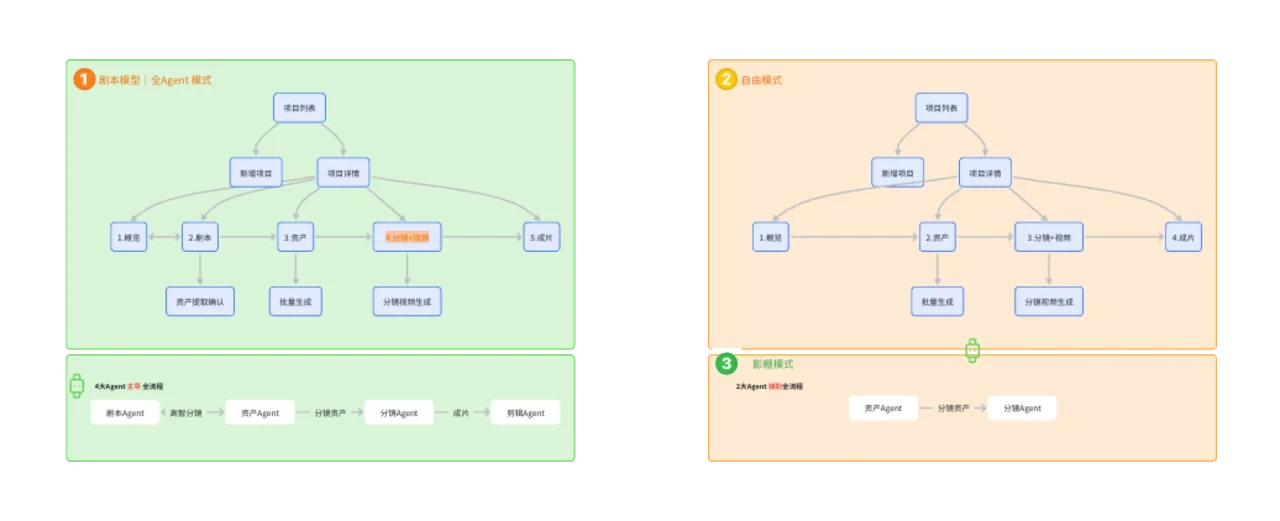
Bollo splits comic-drama production into three paths: script mode (automatic), free mode (manual) and canvas mode (exploratory). All three get you from script → storyboard → video → final cut, but they suit different people, need different material and demand different effort. Choose wrong and you’ll hunt for buttons in an interface that doesn’t fit; choose right and you finish episode one.
This piece gets you through the right door in three minutes.
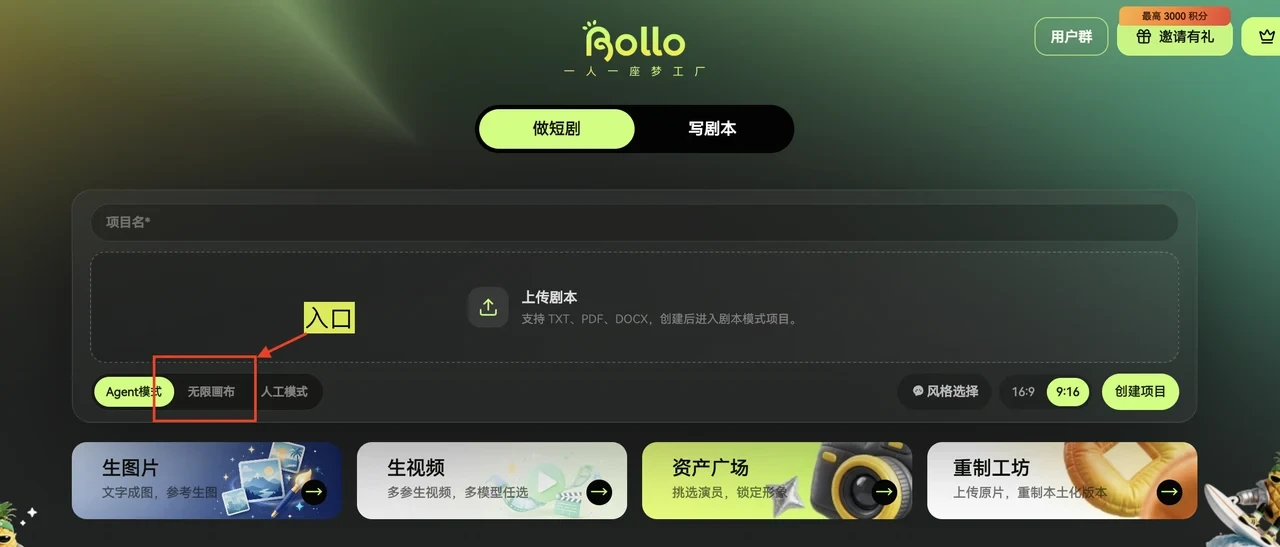
1. Three modes in one table
| Mode | Role | Needs a script? | Best for |
|---|---|---|---|
| Script mode | Fully automatic, officially recommended | Yes, upload TXT / PDF / DOCX / DOC | The whole project |
| Free mode | Manual, free-form creation | No | The whole project |
| Canvas mode | Exploratory creation | No | Testing ideas, arranging material |
The core flow differs too:
- Script mode: script → project assets (characters / scenes / props) → storyboard videos → final cut → review and delivery
- Free mode: from assets to storyboard to final cut, built freely step by step
- Canvas mode: put text, images, video, audio and generation tasks on one infinite canvas, and organize the flow with nodes and connections
2. Script mode: you have a finished script
If any one of these holds, go straight to script mode:
- You already have a complete script in TXT / PDF / DOCX / DOC
- You want the AI to analyze chapters and extract characters and scenes automatically
- You want to advance the storyboard chapter by chapter along the script structure
- Several people are splitting the work on one script
Its value is handing the breakdown to the system. Upload the script and the system parses the chapter structure; you jump chapter to chapter to revise, then extract characters, scenes and props in one click and move into a structured storyboard. The chain stays connected, so you don’t have to track progress in your head.
The cost is that you need a script first. Want to start without one and this mode stops you at the door.
3. Free mode: no script, but you know what you’re making
When you create a project in free mode you only fill in a project name, a project description and a planned episode count (an integer from 1 to 200). No file upload.
It fits these cases:
- You figure it out as you go: characters and scenes first, then assemble them into a storyboard
- You have scattered material (images, video, audio) and want to drop it straight onto the timeline
- Team division of labor: some people work in the asset library, others push episodes forward in the episode workspace
Free mode’s overview page is for team managers — total project progress, asset count, compute consumption, plus each member’s compute use and cumulative output. If you work alone, this page doesn’t matter much; if you’re a studio, it’s your project ledger.
4. Canvas mode: when you have one idea
The heart of canvas mode is one infinite canvas. Put character images, scene images, style images and motion references on it, then connect them to image, video or director stage nodes as reference input for later generation.
It fits these situations:
- You have one idea or a fragment of one, and you need to explore as you refine it
- You want to manage script, characters, scenes, reference images and video clips at the same time
- You need to keep adjusting prompts, models and reference material
- You want natural language to let the Agent handle multi-step creation
- You need to combine material of different kinds: images, video, audio
The “Canvas Agent” on the right is what sets this mode apart: you can just say “Create a character image of a historical-style heroine” or “Connect this character and the street scene from earlier to the video generation node,” and the Agent reads the canvas, creates nodes and runs generation tasks.
One caveat: canvas mode currently has no workflow template marketplace and no publishing or sharing, and a configured node won’t run automatically — the task only starts when you click generate, edit, process or snapshot.
5. When you can’t decide, ask yourself in this order
- Do I have a complete script? Yes → script mode.
- No script, but a clear episode plan and material? → free mode.
- Only a vague idea, not even the episode count settled? → canvas mode; use the Agent to try things out first.
If you’re still torn, try two or three shots on the canvas to get a feel, then create a formal project once the direction is clear. The canvas doesn’t consume project quota, so it’s the cheapest place to be wrong.
6. All three modes reach a final cut
Whichever mode you enter through, everything converges on the same final-cut capabilities: the player, the three modules for storyboard video / dubbing / subtitles, the timeline, and export with batch download. So don’t worry that “the wrong mode means no final cut” — what actually changes is how smooth the middle is.
For a full walkthrough of script mode, continue with Your First AI Drama in 5 Minutes: The Full Script Mode Flow.