
Script mode and free mode both assume you know what you’re making. Canvas mode doesn’t. It’s built for people who have “just one idea.”
One infinite canvas holds your text, images, video, audio and generation tasks. You organize them with connections, and an Agent on the right works through it with you as you go.
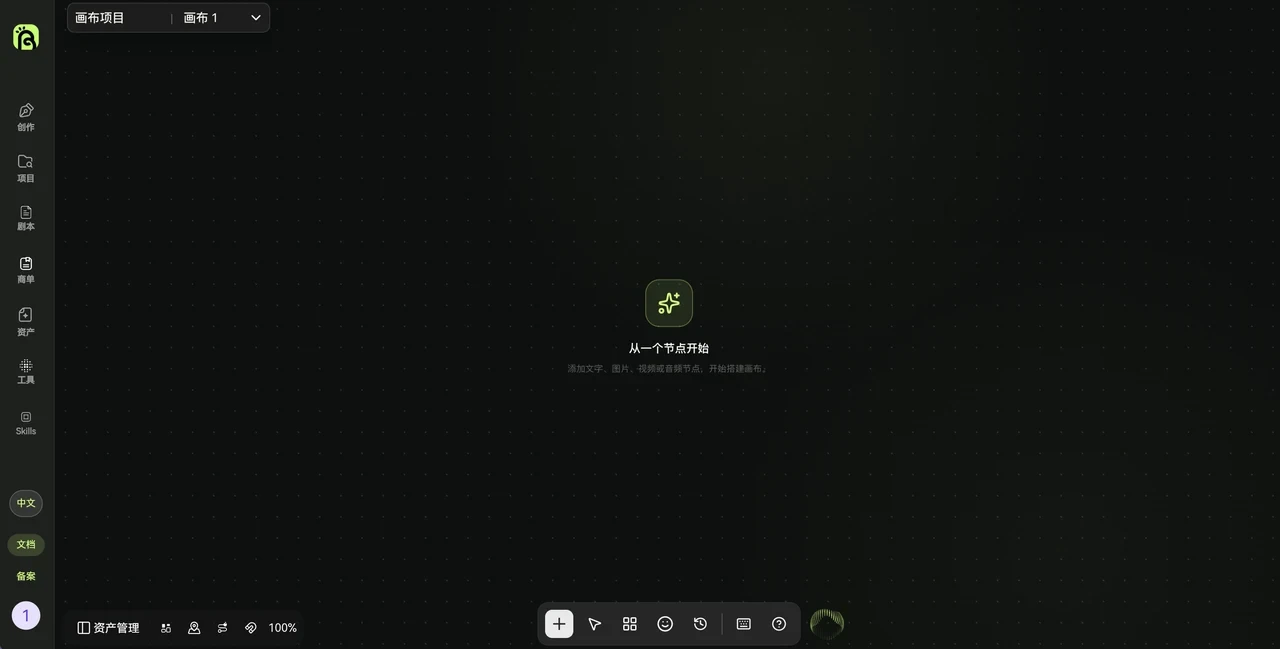
1. When to use the canvas
- You have only a creative idea or a fragment of one, and you need to explore as you refine it
- You want to manage script, characters, scenes, reference images and video clips at the same time
- You need to adjust prompts, models and reference material over and over
- You want to use natural language to have the Agent help with multi-step creation
- You need to combine material of different kinds: images, video, audio
The reverse also holds: if you already have a complete script and want it broken down automatically along a fixed flow, use script mode. The canvas is for exploration, not volume production.
2. Creating a canvas project
- Go to the home page and click “Make a Short Drama”
- Select “Canvas Agent”
- Enter a project name
- Click “Create Project”
The system creates a canvas project and drops you straight into the canvas workspace.
Note that the entry point differs from the other two modes. You don’t click “Create Project” on the project list page; you pick “Canvas Agent” under “Make a Short Drama” on the home page.
3. The workspace has three parts
3.1 The infinite canvas
Where you place and arrange text, images, video, audio and generation nodes.
“Infinite” means no boundary: you can spread out in any direction. In practice, split it by stage: material and references on the left, the generation flow in the middle, finished results on the right. With zones, the canvas doesn’t turn into a mess.
3.2 The canvas Agent
On the right side. It reads the canvas, creates nodes, adds references and runs generation tasks from natural-language instructions.
This is the biggest difference between canvas mode and the other two. You don’t have to remember where the buttons are; just say what you want.
3.3 Toolbars
- Top toolbar: back to project, project name, save status, undo and redo
- Bottom toolbar: new node, upload material, tidy canvas, zoom level
- Canvas controls: minimap, connection display, auto-arrange, zoom
“Auto-arrange” earns its keep once the canvas starts getting messy. It repositions nodes without changing the connections — click it without worry.
4. It works on mobile too
On mobile you switch between two tabs, “Canvas” and “Agent”, and the canvas content and conversation history stay in the same project.
That means the material you laid out on your computer and the conversation you had with the Agent are both there when you pick up your phone. Good for talking through ideas with the Agent on the commute and building them out at your desk.
5. What the current version can’t do
Two things aren’t possible yet, and you should know before you start:
- No workflow template marketplace: you can’t apply a ready-made flow someone else built
- No publishing or sharing: canvas projects can’t be shared externally right now
One more important rule: a configured node does not run automatically. The system only starts a task when you click the corresponding generate, edit, process or snapshot action. It’s an anti-misclick design; don’t assume it didn’t take effect.
6. What to do on your first visit
Work through it in this order:
- Double-click an empty spot on the canvas and see which nodes you can create
- Drag an image in and watch the node get created automatically
- Say something to the Agent, e.g. “Create a character image of a historical-style heroine”, and watch how it reads the canvas, how it creates nodes, and when it asks you to confirm
- Draw a connection from the character image to an image node and see it become a reference input
After those four actions, the core logic of the canvas is clear.
7. Next steps
Nodes and connections are the basic grammar of the canvas: Canvas Nodes and Connections: Turning Reference Material into a Production Flow.